Attendance & Timesheets

Catch attendance exceptions before they reach payroll.

Inside Attendance & Timesheets records clock-ins from the Inside app against the scheduled shift. Auto-Match compares actual time with the plan within your variance tolerance, so only late arrivals, missing clock-outs and overtime need a manager. Confirmed timesheets lock once paid and feed payroll directly.

Timesheets shouldn't be a month-end investigation.

When attendance lives in one system and the roster in another, every late arrival, forgotten clock-out and extra hour is discovered at payroll cut-off. Managers are asked to explain shifts from three weeks ago, payroll waits, and overtime gets paid without anyone approving it.

Scheduled versus actual, every day.

  1. Clock in against the shift. Staff clock in and out, and record breaks, in the Inside app. Managers can scan casuals in by QR.
  2. Auto-Match. Inside compares each clock-in with the scheduled shift. Anything inside your variance tolerance is matched.
  3. Review exceptions. Late arrivals, early leaves, missing clock-outs and overtime are flagged for the manager to adjust or approve.
  4. Confirm and process. Confirmed timesheets are processed for payroll. Once a timesheet is paid, it's locked.
Read the guide: Shift-to-pay explained

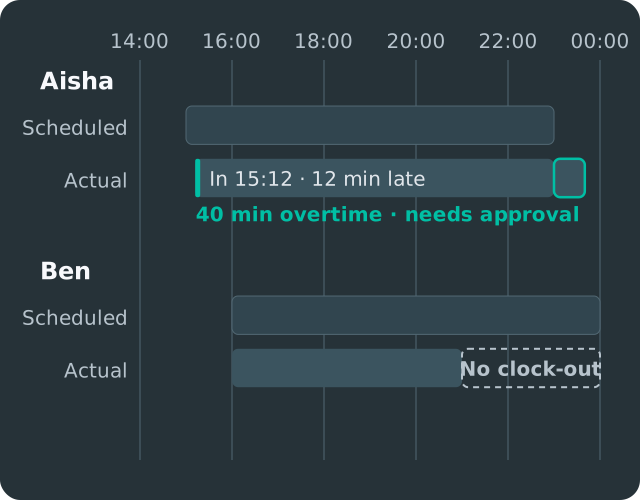
A proportional timeline from 14:00 to 24:00. One worker clocks in 12 minutes late and works 40 minutes past the shift end, which is flagged as overtime for approval. Another has no clock-out, which is flagged before payroll.

What's included

  • Clocking in the Inside app

    Staff clock in and out and record breaks on their phone, against the shift they're scheduled for. On-site options such as QR and NFC can be set up for locations that need them.

    Used by: staff, casual workers

  • Auto-Match with variance tolerance

    Set a tolerance for the organisation and override it per outlet. Time within tolerance matches the plan automatically, so managers spend time only on real exceptions.

    Used by: managers, payroll

  • Daily, Monthly and Individual views

    Review the whole outlet for one day, one person across the month or a team across the period. The User Day Drawer shows everything about one person's day in one place.

    Used by: managers, HR, payroll

  • Adjustments and time corrections

    Managers adjust times with a reason, and staff can request a time correction from the app if they forgot to clock. Every change is recorded.

    Used by: managers, staff

  • Auto-confirm

    Choose a weekly day and time to confirm timesheets that are within tolerance automatically. Exceptions still wait for a manager.

    Used by: managers, payroll

  • Process and lock

    Processed timesheets flow into the pay run. When a timesheet is marked paid it's locked, so payroll and the timesheet always match.

    Used by: payroll

What each team gets

  • ManagersReview a handful of exceptions each day instead of every row.
  • StaffClock in on their phone and fix mistakes with a correction request.
  • PayrollStart the run from confirmed hours, with no last-minute chasing.
  • FinanceOvertime is approved before it's paid.

Frequently asked questions

How do staff clock in?

In the Inside app on their phone. Casual workers use their day pass, and managers can scan them in by QR. On-site QR or NFC clocking can be set up for locations that need it.

What is Auto-Match?

Auto-Match compares each clock-in and clock-out with the scheduled shift. If the difference is inside your variance tolerance, the time is matched to the plan. If not, it's flagged for review.

Can different outlets use different rules?

Yes. The organisation sets a default tolerance and each outlet can override it.

What if someone forgets to clock out?

The missing clock-out is flagged. The staff member can request a time correction in the app, or the manager can adjust it.

Can we export timesheets to another payroll system?

Yes. Export Manager produces Individual Timesheet, Daily Timesheet and roster files as xlsx or csv.

See how Inside fits the way your operation runs.

Tell us about your outlets, workforce mix and current tools. We'll show you the workflows that matter to your team.